When you protect a PDF with a password, the file's contents are scrambled using AES-256 encryption and can only be read by someone who enters the correct password. This is the strongest form of PDF protection — even if the file is copied or shared without permission, the contents stay locked.
How PDF Password Protection Works
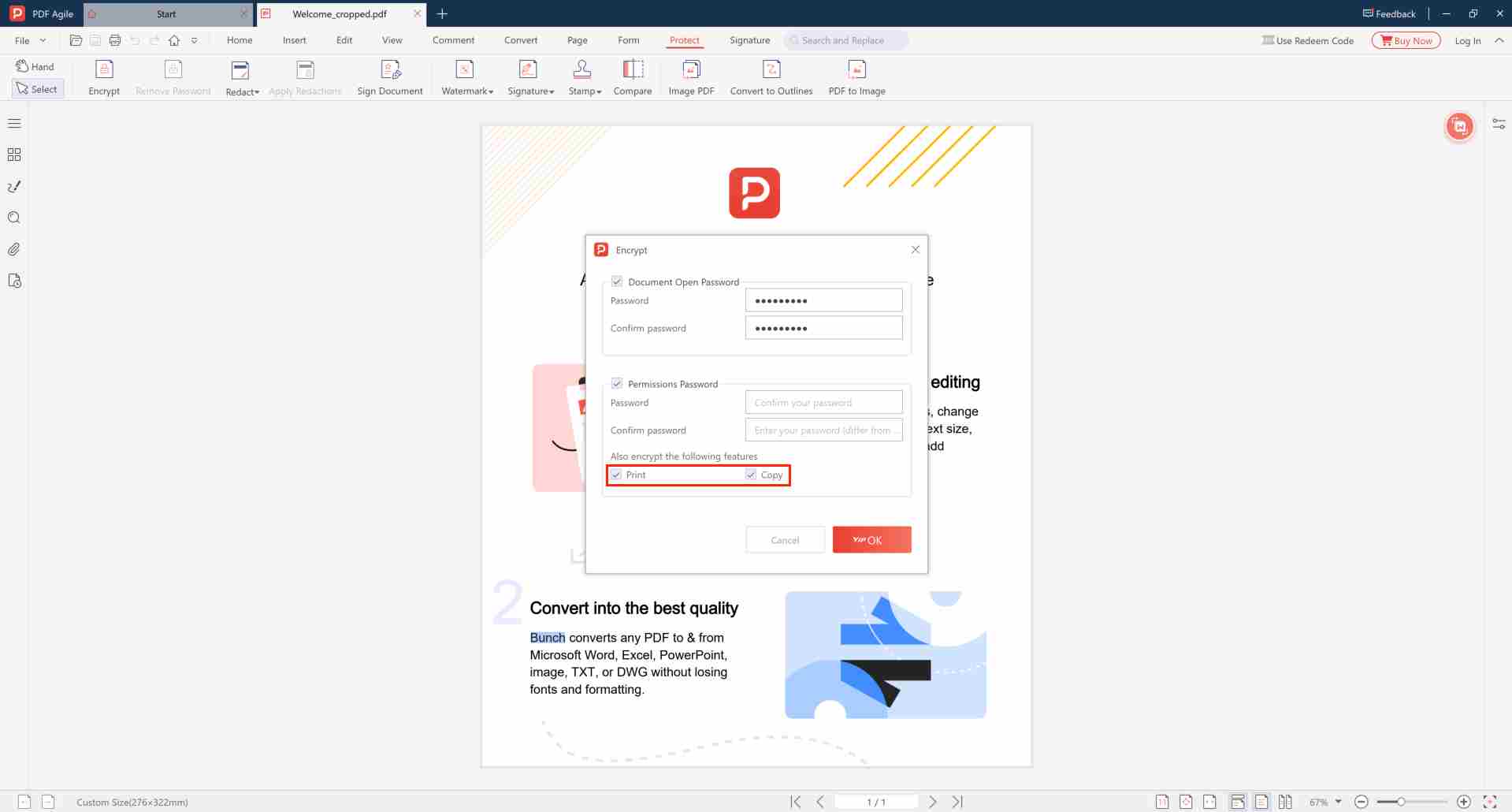
Setting an "open password" on a PDF encrypts the entire document. The password acts as the decryption key — without it, the file is mathematically unreadable. This is fundamentally different from permission restrictions, which only limit what users can do after opening.
How to Password-Protect a PDF (Free, Offline)
- Download and launch PDF Agile on your computer
- Open the PDF you want to protect
- Go to Protect → Encrypt with Password
- Enter a strong password in the Open Password field
- Select AES-256 encryption level
- Optionally set a permissions password for additional restrictions
- Click OK and save the protected copy
Password Protection vs. Other Methods
| Method | Stops Opening | Stops Copying | Strength |
|---|---|---|---|
| Open Password (AES-256) | ✔ | ✔ | Bank-grade |
| Permission Restrictions Only | ✘ | ✔ | Moderate |
| No Password (open file) | ✘ | ✘ | None |
Frequently Asked Questions
🔑 What if I forget the password?
For AES-256 encrypted PDFs, if the open password is forgotten, recovery is impossible. Always store your password in a secure location — consider using a password manager.
📱 Can others open the encrypted file?
Yes. AES-256 encrypted PDFs can be opened in any standard PDF reader (Adobe Reader, browsers, etc.) — the recipient just needs the password to unlock and view the content.
🔒 Is it secure?
Yes. AES-256 is the same encryption standard trusted by banks and governments. The security depends on password strength — use 12+ characters with mixed types for maximum protection.
Password-Protect Your PDF — Offline
Bank-grade AES-256 encryption. No cloud upload, no subscription.
⬇️ Download PDF Agile